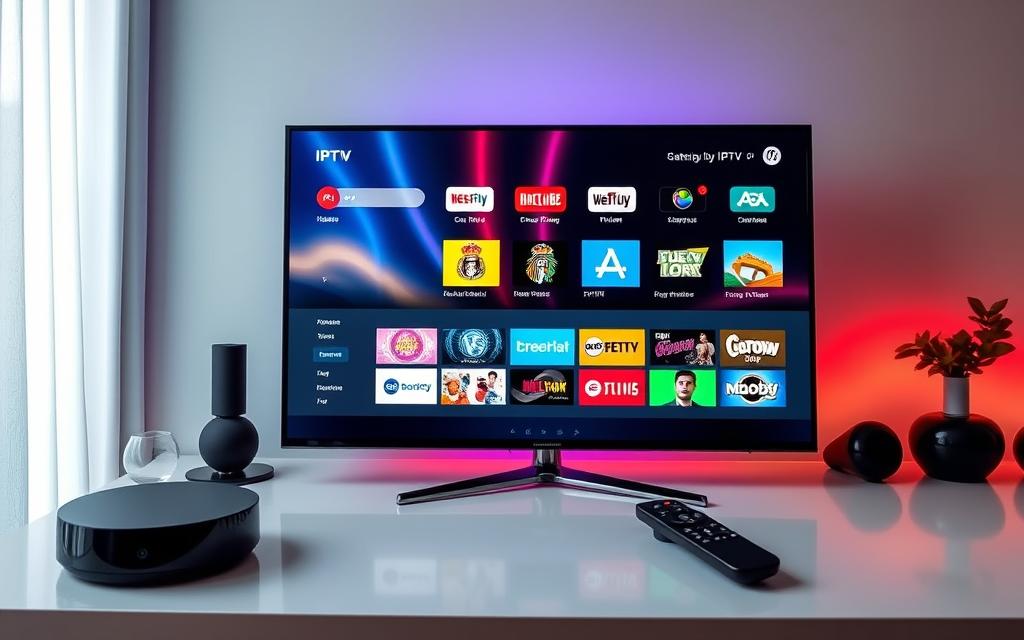

The best streaming device for a non smart TV is usually a cheap 1080p stick: the Roku Streaming Stick (around $39.99) for simplicity or the Fire TV Stick HD (around $35 to $40) for Amazon households. If your TV has an HDMI port, any streaming stick turns it into a smart TV in minutes. If it has no HDMI port, you will also need an HDMI-to-composite (RCA) converter, and the picture will be standard definition.
This guide is for people with an older, perfectly good TV who want Netflix, YouTube, live TV apps and more without buying a new set. It covers how to check your TV, what to buy for 720p and 1080p screens, and what to do if your TV predates HDMI.
Step 1: check what your TV can accept
Look at the back or side of the TV for its input ports. What you find decides everything else:
| What your TV has | What it means | What to buy |
|---|---|---|
| HDMI port, 1080p or 720p screen | Works with any streaming device | A 1080p stick (Roku Streaming Stick, Fire TV Stick HD) |
| HDMI port, 4K screen (not smart) | Can show 4K and HDR | A 4K stick (Roku Streaming Stick 4K, onn 4K Pro) |
| Only red/white/yellow RCA (composite) | No digital input | Stick plus an HDMI-to-AV converter |
| Component (red/green/blue) only | Analog HD input | Stick plus an HDMI-to-component converter |
| Only a coaxial antenna jack | Very old TV | Stick, converter and RF modulator, or consider replacing the TV |
The model number on the TV’s rear label will tell you its resolution if you are unsure. Most flat TVs sold since the late 2000s have at least one HDMI port, so the majority of “dumb” TVs need nothing more than a stick.
Best picks for a non smart TV with HDMI
Roku Streaming Stick: the easiest upgrade
Roku’s basic stick (around $39.99 after the July 2026 price change) outputs 1080p, has dual-band Wi-Fi and a remote that works without line of sight. The interface is a plain grid of apps, which makes it a good fit for older relatives or anyone who just wants the TV to “do Netflix.” It also has the widest selection of free channels through The Roku Channel.
Fire TV Stick HD (2026): cheapest if you use Alexa
Amazon’s 2026 Fire TV Stick HD (regular price around $34.99 to $39.99, often on sale) is slim, has Wi-Fi 6, outputs 1080p, and is designed to draw power directly from a TV’s USB port, which is handy on older sets where wall outlets are hard to reach. It runs Amazon’s new Vega OS, which only installs apps from the Amazon Appstore, so confirm that the apps you need are listed. The HDMI extender cable is no longer included.
onn 4K Pro: if you might upgrade the TV later
Walmart’s 2026 onn 4K Pro (around $60) is a 4K Google TV box with Ethernet and Wi-Fi 6. It still works perfectly on a 1080p TV, scales its output down automatically, and will be ready if you move it to a 4K TV later. It is a box rather than a stick, so it needs a spot near the TV and a wall outlet.
Comparison table: cheapest ways to make a TV smart
| Device | Around (list) | Output | Best for |
|---|---|---|---|
| Roku Streaming Stick | $39.99 | 1080p | Simplest setup, older viewers |
| Fire TV Stick HD (2026) | $35 to $40 | 1080p HDR10+ | Alexa homes, USB-powered setups |
| Roku Streaming Stick Plus | $59.99 | 4K HDR10+ | 4K TVs on a budget |
| onn 4K Pro (2026) | $60 | 4K Dolby Vision | Future-proofing, Ethernet |
| Roku Streaming Stick 4K | $79.99 | 4K Dolby Vision | 4K TVs with Dolby Vision |
On a 720p or 1080p TV there is no reason to pay for a 4K device unless you plan to replace the TV soon. For a broader roundup of premium options, see our best streaming device 2026 guide.
Older TVs without HDMI: using a converter
If your TV only has composite RCA inputs (yellow video, red and white audio), a streaming stick cannot plug in directly. An HDMI-to-AV converter is a small box that takes the stick’s HDMI signal and outputs analog video. They are inexpensive and widely sold, but keep expectations realistic:
- The picture will be standard definition. Composite video cannot carry HD, so text in menus looks soft.
- Set the stick to the lowest resolution it offers (720p or “auto”) so the converter has an easy job.
- Copy protection can cause a black screen. Streaming apps protect video with HDCP. Not every cheap converter handles this, so buy one from a seller with a clear return policy and reviews that mention your device.
- Power matters. Most converters need USB power, and so does the stick. Use the included wall adapters rather than the TV’s USB port on very old sets.
- Choose NTSC for US TVs if the converter has a PAL/NTSC switch.
If the TV only has a coaxial antenna input, you would need an RF modulator on top of a converter. At that point, a low-cost new TV with built-in apps is often the better spend.
Set up your streaming device in 10 minutes
- Plug the stick into an HDMI port (use the extender if it is a tight fit) and connect power, ideally from the wall adapter.
- Switch the TV’s input or source to that HDMI port.
- Pair the remote, connect to Wi-Fi and sign in or create the platform account (Roku, Amazon or Google).
- Install the apps you want: Netflix, YouTube, free services like Pluto TV, Tubi and Samsung TV Plus where available, or a live TV service like YouTube TV, Sling TV or Philo.
- If the picture looks cropped or blurry, set the display resolution manually to match your TV (720p or 1080p).
Want live channels without cable? Free ad-supported apps are the cheapest start. For full channel lineups, licensed services like Sling TV, Philo or YouTube TV run on all of these sticks. If you prefer IPTV, our beginner’s IPTV setup guide explains how player apps work, and our IPTV Journal plan is $89 for 12 months with live channels, sports and on-demand content. IPTV is legal as a technology, but unlicensed services are not, so check rights and local law before subscribing.
Which device should you get for your old TV?
For a 720p or 1080p TV with HDMI, get the Roku Streaming Stick if you want the simplest experience, or the Fire TV Stick HD if you use Alexa and want USB-powered convenience. If the TV is 4K, a 4K stick or the onn 4K Pro is worth the extra money. If the TV has no HDMI, budget for a converter and accept standard definition, or weigh it against the cost of a new small smart TV.
If you are connecting more than one TV, our guide on connecting one box to two TVs explains when a splitter makes sense and when a second stick is simpler.
FAQ
Can any TV become a smart TV?
Almost any TV with an HDMI port can, by adding a streaming stick or box. TVs with only analog inputs need an HDMI-to-AV converter as well, and the picture will be limited to standard definition.
What is the cheapest streaming device for a non smart TV?
Basic 1080p sticks like the Fire TV Stick HD and Roku Streaming Stick are the cheapest mainstream options at around $35 to $40 list, and both are often discounted. There are no monthly fees for the device itself.
Do streaming sticks work on 720p TVs?
Yes. Streaming sticks detect the TV and output a resolution it supports. You can also set 720p manually in the display settings if the picture looks wrong.
Why is my converter showing a black screen with a streaming stick?
The most common cause is HDCP copy protection that the converter does not handle, or not enough power reaching the stick or converter. Try a different converter, use wall power for both, and set the stick to a lower resolution.
Do I need a 4K stick for an old TV?
No. A 4K stick will work but you will not see the difference on a 720p or 1080p screen. Buy 4K only if you plan to move the device to a 4K TV.
Part of our guides: USA streaming guide
Author

Get IPTV Journal: 12 months for $89
20,000+ live channels, sports, PPV, movies and series on every device.