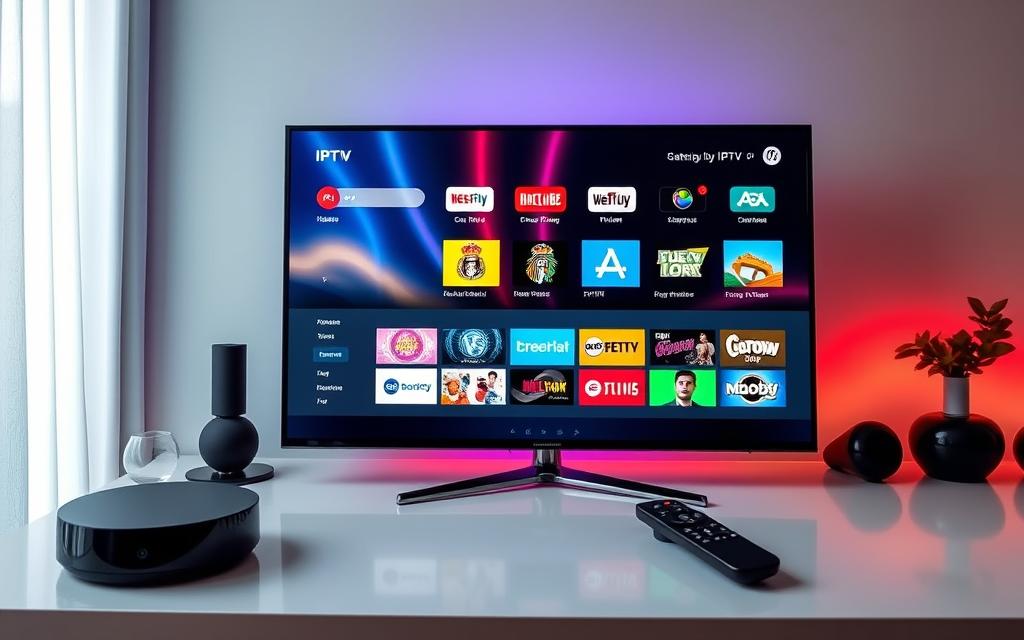

The NVIDIA Shield TV is one of the most capable boxes for IPTV: it runs Android TV with the Google Play Store, so players like TiviMate install officially, and its Tegra X1+ processor handles huge playlists, fast channel switching and AI upscaling of HD channels. To set up IPTV on NVIDIA Shield, install a player from Google Play, add your Xtream Codes login or M3U link, then turn on a few Shield-specific features that cheaper streamers simply do not have.
This guide is written for people who want to go beyond the basics: recording to USB, matching frame rates and getting HD sports to look their best on a 4K TV.
Shield TV models and what they mean for IPTV
NVIDIA has sold two versions of the current Shield since 2019. Both run Android TV (not the newer Google TV interface) and both have Gigabit Ethernet.
| Feature | Shield TV (tube) | Shield TV Pro |
|---|---|---|
| Processor | Tegra X1+ | Tegra X1+ |
| RAM | 2 GB | 3 GB |
| Storage | 8 GB | 16 GB |
| USB ports | None (microSD slot) | 2 x USB 3.0 |
| Ethernet | Gigabit | Gigabit |
| AI upscaling | Yes | Yes |
| Plex Media Server | No | Yes |
For IPTV, the Pro is the better buy if you can find it: the extra memory helps with very large guides, and the USB ports let you add storage for recordings. Availability and pricing have shifted over the past year, with the tube model often out of stock, so check current listings before buying.
Step 1: Choose a player
Every player below is empty until you add your own subscription; none includes channels.
- TiviMate IPTV Player: the most popular choice on Shield, with a grid guide, catch-up support and, on Premium, recording and multiple playlists. It is on Google Play for Android TV.
- IPTV Smarters Pro: simpler interface organized into Live, Movies and Series.
- Kodi with the PVR IPTV Simple Client: free and very flexible, good if you already use Kodi for a media library. Our guide to IPTV options in Kodi covers the setup.
- VLC: free, useful for testing a link.
For a broader comparison, see our IPTV player rankings.
Step 2: Install and add your login
- On the Shield home screen, open the Google Play Store and search for your player.
- Check the developer name (TiviMate is published by Armobsoft FZE) and select Install.
- Open the player and choose Xtream Codes (server URL, username, password) or M3U playlist (a single URL plus an optional EPG link).
- Use the player’s web or QR entry if offered, or the Google TV app on your phone as a keyboard, to avoid typing long URLs with the remote.
- Let the guide finish loading before you start browsing; the first load of a big EPG can take a few minutes.
If you are new to the two login formats, our M3U explainer covers the difference.
Step 3: Shield settings worth changing for IPTV
AI-enhanced upscaling
Many IPTV channels are 720p or 1080p. The Shield can upscale them to 4K with its AI mode. Go to Settings > Device Preferences > Display & Sound > AI upscaling and try the “AI-Enhanced” setting with detail on Medium. Compare with your TV’s own upscaler and keep whichever looks better to you.
Match frame rate
Under Display & Sound > Advanced settings, turn on Match content frame rate, then enable auto frame rate (AFR) inside your player if it has the option. This lets the Shield switch to 50 Hz for European channels and 60 Hz for US ones, which removes judder in sports.
Set the resolution and HDR correctly
Choose 4K at 59.940 Hz for US content, and leave HDR matching to the content where possible. Forcing HDR on SDR channels is a common cause of washed-out colors.
Use Ethernet
The Shield’s Gigabit port is the single best fix for live-stream buffering. If you must use Wi-Fi, use 5 GHz and keep the box in the open.
Step 4: Record live TV to USB (Shield TV Pro)
The Pro’s USB 3.0 ports make it a capable recorder with players that support recording, such as TiviMate Premium.
- Plug in a USB drive or SSD. When asked, choose whether to format it as internal (adoptable) storage or keep it as removable storage. For recordings, removable storage is simpler because you can unplug the drive and read it on a computer.
- In your player’s settings, set the recording folder to the USB drive.
- Schedule recordings from the program guide, and check that your provider allows enough simultaneous connections if you want to record one channel while watching another.
Only record content you are entitled to watch under your subscription and local law.
Performance tips for heavy users
- Hide groups you never watch. Even with 3 GB of RAM, a 20,000-channel list with a full guide is heavy.
- Schedule EPG updates once a day, ideally overnight.
- Keep the Shield updated. Check Settings > Device Preferences > About > System upgrade.
- Restart weekly to clear memory.
- Disable unused background apps under Settings, Apps.
For network and HDMI requirements for real 4K channels, see our 4K IPTV requirements guide.
Is the Shield worth it for IPTV?
If you want the most flexible Android TV box with USB recording, AI upscaling and a long track record of updates, yes. If you just want a straightforward IPTV setup with a good guide, the Google TV Streamer or a Fire TV Stick 4K Max will do the job for less. The Shield’s advantage shows most with large playlists, recordings and sports on big 4K TVs.
For a subscription to load into it, our own plan is 12 months for $89 with 20,000+ live channels and sports: see the IPTV Journal plan details. IPTV technology is legal; make sure any provider you use holds the rights to its channels.
FAQ
Is TiviMate on Google Play for NVIDIA Shield?
Yes. TiviMate is designed for Android TV and is listed on Google Play, so you can install it on the Shield without sideloading. Premium is an optional paid upgrade for features like recording.
Does the NVIDIA Shield run Google TV?
No. The Shield runs Android TV with NVIDIA’s own software updates rather than the Google TV interface. Google Play and the same IPTV players are available either way.
Can I record IPTV on the NVIDIA Shield?
Yes, with a player that supports recording, such as TiviMate Premium, and external storage. The Shield TV Pro has two USB 3.0 ports, which makes it the easier model for this.
Does AI upscaling help IPTV channels?
It can make 720p and 1080p channels look sharper on a 4K TV, especially news and entertainment. Results vary with the source, so compare it against your TV’s built-in upscaling.
Which is better for IPTV, Shield TV or Shield TV Pro?
The Pro has more memory, more storage and USB ports for recordings, which helps with big playlists. The tube model is fine for watching, but has less room and no USB ports.
Author

Get IPTV Journal: 12 months for $89
20,000+ live channels, sports, PPV, movies and series on every device.